
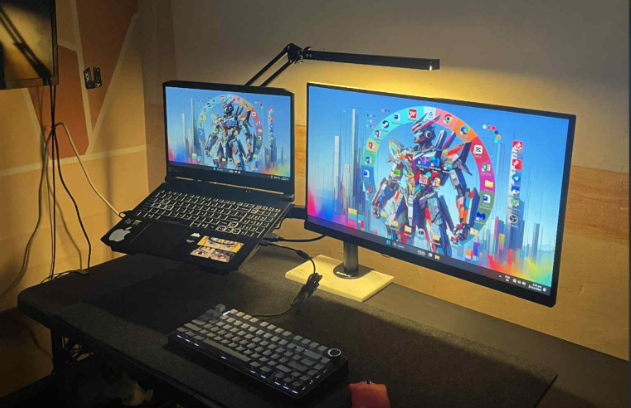
Creating My Ideal Workspace: Setting Up My Laptop and Monitor
Today, I spent time improving my study area by connecting my laptop to an external monitor and organizing my desk. My goal was to create a workspace where I could study, write code, work on school activities, and manage my website more comfortably.
A workspace does not need to be expensive or filled with the newest equipment. For me, arranging the devices I already had made a noticeable difference. This simple project taught me that proper placement, cable management, and display settings can make everyday computer work easier.
Planning My Desk Arrangement
Before connecting anything, I cleared unnecessary items from my desk and planned where each device would go. I wanted the monitor to be directly in front of me while keeping my laptop close enough to use its keyboard and access its ports.
I considered the space needed for my mouse, notebooks, chargers, and other school materials. Placing everything without a plan would have made the desk feel crowded, so arranging the largest devices first was helpful.
My basic setup included:
- A laptop
- An external monitor
- A display cable
- A laptop charger
- A mouse
- Enough space for notes and school materials
After choosing the positions, I checked whether the cables could reach the necessary ports and power outlets without being stretched.
Connecting the Monitor to My Laptop
The next step was connecting the external monitor to my laptop using the appropriate display cable. After turning on the monitor, I waited for the laptop to detect the second screen.
I opened the Windows display settings and checked whether both screens appeared. I then selected the option to extend the displays instead of showing the same content on both screens.
Extending the display gave me a larger digital workspace. I could move an application from the laptop screen to the monitor and use both screens for different tasks.
I also checked the screen resolution and selected the recommended setting for the monitor. Using the correct resolution helped keep text, icons, and images clear. After that, I arranged the displays in the settings so the cursor would move naturally between the two screens.
Finding a Comfortable Monitor Position
Once the monitor was working, I adjusted its position until it felt comfortable to use. I placed it directly in front of my usual sitting position and made sure I did not need to twist my neck constantly to view it.
I also adjusted the distance between my chair and the screen. The text needed to be readable without forcing me to lean forward. Because every desk and monitor is different, I tested several positions before choosing the one that felt best.
I then adjusted my chair and made sure I had enough space to move the mouse. These small changes made the setup more comfortable during longer study sessions.
Organizing the Cables
After connecting the monitor and laptop, I noticed that the display cable, charger, and power cables could easily make the desk look untidy.
I grouped the cables together and moved the extra cable length away from my working area. I also made sure the cables were not placed where they could be pulled accidentally.
Cable management may appear to be a small detail, but it made my desk look cleaner and gave me more usable space. It also made it easier to identify each cable whenever I needed to disconnect or reconnect a device.
Testing the New Setup
When everything was arranged, I tested the workspace by opening different applications and moving them between the two screens.
I tried using the monitor for my main task while keeping supporting information on the laptop screen. For example, I could place a code editor on the larger monitor and keep instructions or a browser window on the laptop.
The setup was also useful when working on my WordPress website. I could open the WordPress editor on one screen and preview the public page on the other. This made it easier to notice formatting problems without repeatedly switching between windows.
For school activities, one screen could display a module or reference material while the other contained the document or application I was working on.
How the Monitor Improved My Workflow
The external monitor did not automatically make me more productive, but it made several tasks more convenient.
The additional screen space helped me:
- View multiple applications at the same time
- Compare instructions with my work
- Preview webpages while editing them
- Follow programming lessons while writing code
- Organize research and school documents
- Reduce constant switching between windows
The larger display was especially helpful when using applications with many panels, menus, or tools. I could see more information without making every window extremely small.
However, I also learned that having two screens can become distracting if I open unnecessary applications. A better setup is only useful when I remain focused on the task I need to complete.
Keeping the Workspace Simple
While improving my desk, I realized that an ideal workspace is not necessarily a perfect gaming or professional setup. It should match the user’s available space, equipment, and daily activities.
My priority was functionality. I wanted a clean area where I could use my laptop and monitor without feeling uncomfortable or crowded.
Instead of adding many decorations or accessories immediately, I focused on the essentials:
- A working computer and monitor
- A clear desk
- Comfortable device placement
- Organized cables
- Proper display settings
- Enough room for studying and writing
I can still improve the workspace later, but starting with these basic elements already made it more enjoyable to use.
Lessons I Learned
Setting up my monitor and laptop taught me that small changes can improve how I work. I learned how to configure an extended display, select a suitable resolution, arrange two screens, and organize the physical space around my computer.
I also learned that testing is important. The first arrangement may not be the most comfortable one, so it is helpful to try different positions and adjust the setup based on actual use.
Most importantly, I discovered that productivity depends on both technology and personal habits. A clean and organized workspace can support better concentration, but I still need to manage my time and avoid distractions.
Conclusion
Creating my ideal workspace was a simple but rewarding experience. Connecting my laptop to an external monitor gave me more room for programming, studying, writing, and managing my website.
Organizing the desk and cables also made the area feel cleaner and more professional. By the end of the setup, I had created a workspace where I could focus on my lessons and future IT projects more comfortably.
My setup may continue to change as my needs grow, but this experience gave me a practical starting point. It showed me that improving a workspace does not always require expensive equipment—sometimes, thoughtful organization can make the biggest difference.