
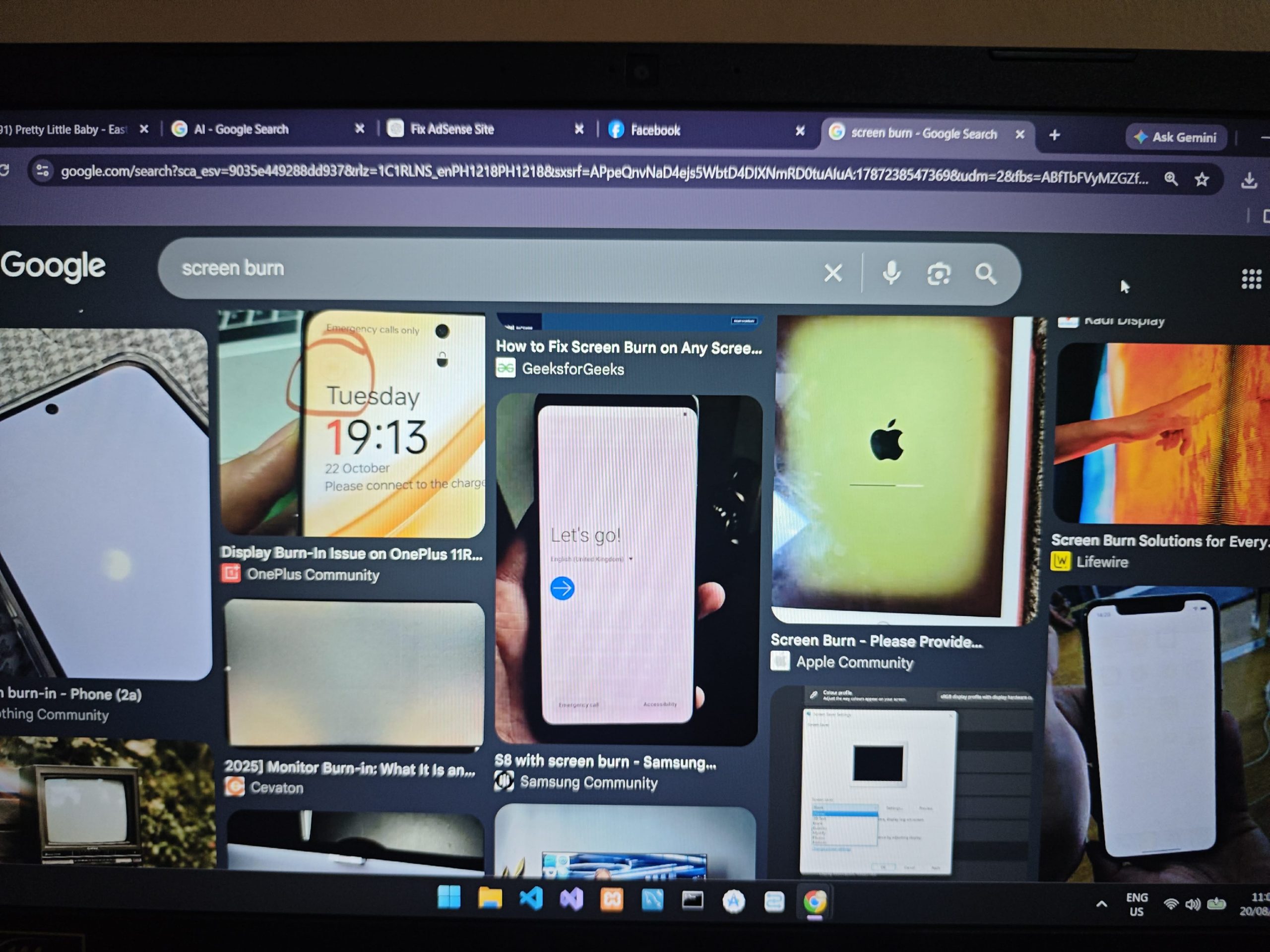
Screen Burn-In Explained: Safe Ways to Reduce Image Retention and Prevent Damage
A faint keyboard, navigation bar, logo, or application window that remains visible after the content changes may be a sign of image retention or screen burn-in.
The two problems can look similar, but they are not exactly the same. Temporary image retention may disappear after the display rests or shows different content. Permanent burn-in is physical wear caused by certain pixels aging differently from the surrounding pixels.
Understanding the difference can help users avoid unsafe methods and determine whether the screen needs professional repair.
What Is Screen Burn-In?
Screen burn-in happens when a fixed, high-contrast image remains on a display for a long time. The affected pixels may wear unevenly, leaving a faint version of the image visible while other content is displayed.
Common examples include:
- Television channel logos
- Video-game health bars and maps
- Phone navigation buttons
- Computer taskbars
- Application menus
- Scoreboards
- Security-camera layouts
- Bright website headers
OLED displays are commonly associated with burn-in because their individual pixels produce their own light and can age at different rates.
LCD displays can sometimes show image persistence, but the cause and behavior may be different from permanent OLED burn-in.
Burn-In Versus Temporary Image Retention
Image retention is usually temporary. A faint image may appear after displaying the same content for an extended period, but it can disappear after several minutes of normal use or after the screen has been turned off.
Apple explains that image persistence on its OLED displays is temporary and may disappear after a few minutes of normal use. Burn-in can happen in more extreme situations when the same high-contrast image remains visible at high brightness for a prolonged period.
Permanent burn-in normally remains visible after the device has rested and displayed varied content. Software cannot restore physically worn pixels to their original condition.
Before assuming the panel is permanently damaged, users should perform simple and safe tests.
How to Check the Screen
Display several full-screen colors, such as gray, white, red, green, and blue. Look for a repeated shape that remains in the same location on every color.
A retained image that matches a taskbar, logo, keyboard, or application interface may indicate image persistence or burn-in.
Users should also:
- Restart the device
- Disconnect external display cables and reconnect them
- Check whether the mark appears in the device’s settings or startup screen
- Test a different input source
- Take a screenshot
If the mark appears in a screenshot viewed on another device, the problem may come from software or the displayed content. If the screenshot looks normal on another device but the mark remains on the original screen, the display panel may be responsible.
- Turn the Screen Off and Let It Rest
Turn the display off for several hours. If possible, allow it to cool completely.
Temporary image retention may fade while the panel is not being used. After the resting period, turn the device on and display normal moving content at moderate brightness.
Avoid immediately returning to the same static image that caused the problem.
- Reduce Brightness
High brightness increases stress on display pixels. Lower the brightness to a comfortable level and enable automatic brightness when available.
The screen should remain readable without constantly operating at maximum brightness.
Reducing brightness cannot reverse permanent damage, but it can make image retention less visible and help reduce additional uneven wear.
- Use Built-In Panel-Care Features
Some OLED televisions and monitors include manufacturer-provided maintenance features such as:
- Pixel Refresh
- Panel Refresh
- Pixel Cleaning
- Screen Optimization
- Pixel Shift
- Logo Brightness Adjustment
Samsung, for example, provides Pixel Refresh and Pixel Shift options on supported OLED monitors and televisions.
Users should follow the instructions for their exact model. During Pixel Refresh, the device may turn off for an extended period. Interrupting the process could prevent it from completing correctly.
Panel-refresh features should not be run repeatedly without reason. Use them according to the manufacturer’s recommendations.
- Update the Device
Install available system, firmware, graphics-driver, and display updates from the device manufacturer.
Updates may improve screen-protection features, brightness behavior, power management, and panel-care functions.
Users should obtain updates only through the manufacturer’s official website, operating-system settings, or trusted device-management application.
- Display Varied Content
After allowing the screen to rest, use normal full-screen videos or other moving content at moderate brightness.
The purpose is not to force the pixels with extreme brightness or flashing images. It is simply to avoid displaying the same static interface continuously.
Some online videos claim to repair burn-in by flashing colors rapidly. These videos may help reveal a stuck pixel or temporary retention, but they cannot repair permanently worn OLED pixels. Rapid flashing content may also be uncomfortable or unsafe for people with photosensitivity.
Avoid leaving a completely white image on an OLED display at high brightness for several hours because this can place additional stress on the panel.
- Contact the Manufacturer or a Repair Center
If the retained image remains after the screen has rested, displayed varied content, and completed the manufacturer’s panel-care process, the damage may be permanent.
Contact the manufacturer or an authorized repair center. Depending on the device, the display panel may need replacement.
Users should check the warranty terms before paying for repair. Burn-in coverage differs by product and manufacturer.
How to Prevent Screen Burn-In
Prevention is more effective than attempting to correct permanent damage.
Use these practices:
- Avoid maximum brightness for extended periods
- Enable automatic brightness
- Use a short screen-timeout setting
- Turn off the display when it is not being used
- Enable a moving screensaver
- Hide the taskbar when practical
- Use full-screen video instead of leaving controls visible
- Avoid leaving paused games or videos on the screen
- Enable Pixel Shift and other panel-protection features
- Change static wallpapers occasionally
- Use dark mode when it is comfortable
- Allow automatic panel maintenance to finish
- Avoid disconnecting an OLED television or monitor from power immediately after turning it off if the manufacturer performs maintenance while powered down
Businesses using displays for menus, advertisements, security cameras, and information boards should rotate layouts and avoid leaving identical high-contrast elements in one location throughout the day.
My Perspective as an IT Student
As an Information Technology student, I think this issue shows why users should understand the difference between software problems and hardware damage.
It is easy to download an application or play a burn-in repair video with the expectation that it will completely restore the screen. However, software cannot physically repair pixels that have permanently degraded.
The safest approach is to begin with non-destructive steps: restart the device, let the screen rest, reduce brightness, update the system, and use the manufacturer’s built-in panel-care feature.
If these steps do not improve the display, professional diagnosis is better than repeatedly forcing the screen to show bright or flashing content.
Conclusion
A faint image on a screen does not always mean permanent burn-in. It may be temporary image retention that disappears after the panel rests or displays normal varied content.
Users should avoid aggressive online repair methods. Manufacturer-provided tools, moderate brightness, regular screen timeouts, and varied content are safer ways to protect the display.
When a retained image remains visible after safe troubleshooting, the panel may be permanently damaged and require professional repair or replacement.
Sources
INQUIRER.net Technology — “Screen burn-in on monitors, phones, TVs: How to fix it”:
https://technology.inquirer.net/133497/how-to-fix-screen-burn-in
Apple Support — “About the Super Retina display and Super Retina XDR display”:
https://support.apple.com/en-us/109039
Samsung Support — “Prevent burn-in on Samsung OLED Monitor”: