
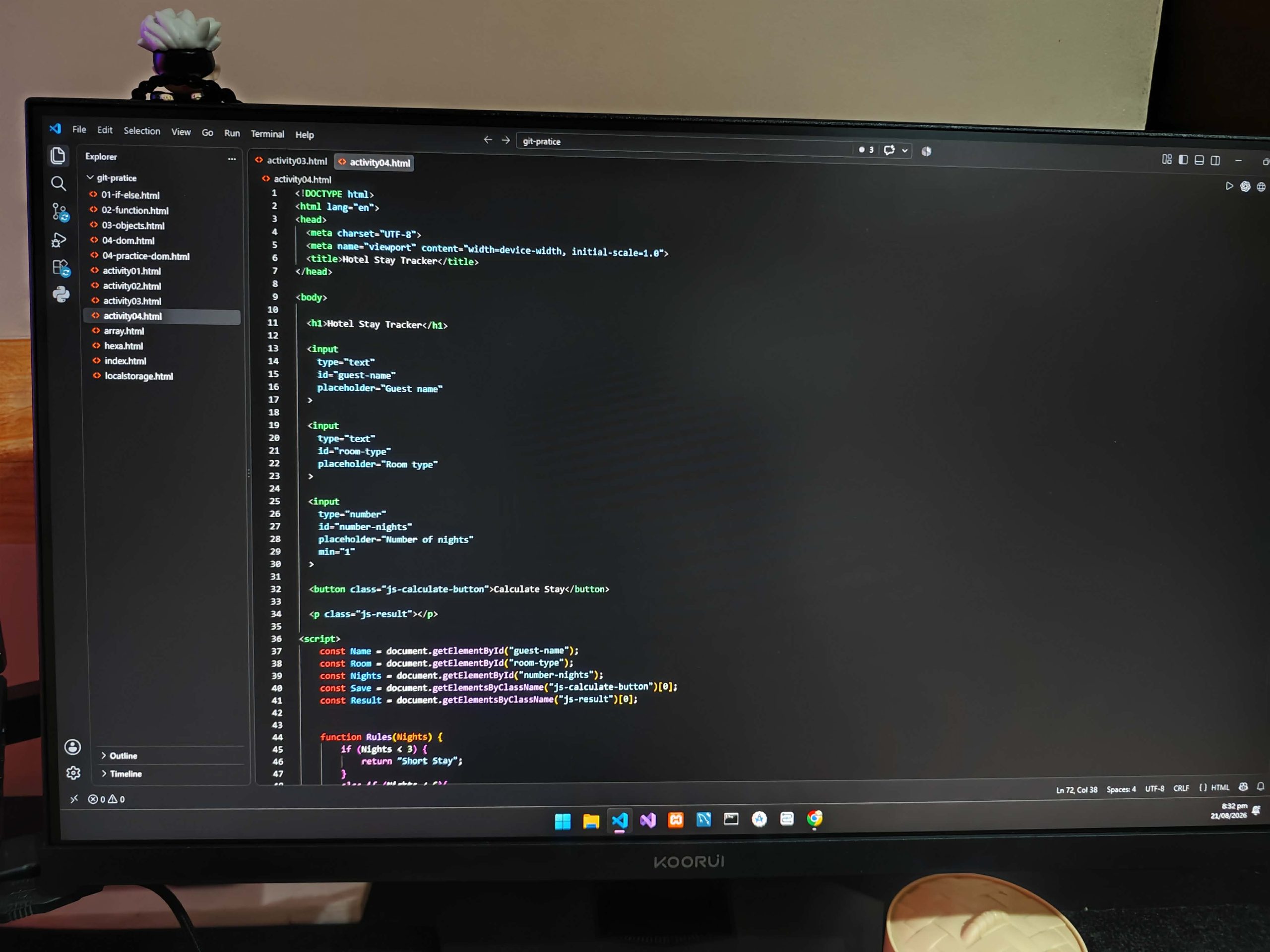
Learning JavaScript has been one of the most challenging but rewarding parts of my journey as an IT student. I already had experience with HTML and CSS, but JavaScript introduced something different: interaction and logic.
HTML gives a webpage its structure, while CSS controls its appearance. JavaScript allows the page to respond to users, calculate values, save information, and update content without reloading.
I began with simple button activities and gradually moved on to functions, objects, calculations, DOM manipulation, event listeners, and local storage.
Starting with the JavaScript DOM
One of the first concepts I studied was the Document Object Model, commonly called the DOM. It represents the elements of an HTML page in a way that JavaScript can access and modify.
For example, I learned to select an input using its ID:
const Name = document.getElementById(“employee-name”);
I also practiced selecting elements by class name:
const Save = document.getElementsByClassName(“js-save-button”)[0];
The [0] is necessary because getElementsByClassName() returns a collection of matching elements, even when only one element uses that class.
Another useful method I practiced was querySelector():
const Result = document.querySelector(“.js-result”);
This method uses CSS-style selectors. A period is used for a class, while a number sign is used for an ID.
At first, these different selection methods were confusing. With practice, I began to understand when and how to use each one.
Making Buttons Respond to Users
After learning how to select HTML elements, I practiced adding events to buttons. An event listener tells JavaScript to run a function when a particular action occurs.
Save.addEventListener(“click”, employee);
In this example, the employee function runs when the user clicks the Save button.
This was an important step because it helped me understand how JavaScript connects to an HTML interface. The button is created in HTML, but JavaScript controls what happens after it is clicked.
I used this concept in several activities, including a subscription button, salary calculator, book return tracker, product discount calculator, and hotel stay tracker.
Working with Input Values
Values collected from HTML inputs are normally treated as strings. This can cause problems when performing calculations.
For example, if a user enters the number 5, JavaScript may initially read it as text. I learned to convert numerical input values using Number():
const hours = Number(Hours.value); const rate = Number(Rate.value); const salary = hours * rate;
Without this conversion, JavaScript might join values as text instead of calculating them correctly.
This lesson was especially helpful when I created projects involving prices, quantities, working hours, rates, and numbers of days or nights.
Using Functions for Reusable Logic
Functions helped me organize my code into smaller and more understandable parts.
In my employee salary activity, I created a function that checked whether a calculated salary was high or regular:
function checkSalary(salary) {
if (salary >= 10000) {
return “High Salary”;
} else {
return “Regular Salary”;
}
}
Instead of placing all the logic inside one large block of code, I could call checkSalary(salary) whenever I needed the result.
This taught me that functions are useful for avoiding repeated code. Each function should ideally perform a clear task, such as calculating a value, checking a condition, saving information, or displaying a result.
Practicing Conditions
I used if, else if, and else statements in activities that required decisions.
For example, a product discount calculator can apply different discounts depending on the purchase amount:
function getDiscount(subtotal) { if (subtotal >= 5000) { return subtotal * 0.10; } else if (subtotal >= 1000) { return subtotal * 0.05; } else { return 0; } }
This helped me understand that conditions allow a program to produce different results depending on the data entered by the user.
I also learned to arrange conditions carefully. When checking ranges, the order matters because JavaScript stops after finding the first true condition.
Organizing Information with Objects
After practicing variables and functions, I learned how to group related values inside an object.
In my employee salary calculator, I stored the employee’s information like this:
const employeeData = { name: Name.value, hours: hours, rate: rate, salary: salary, status: checkSalary(salary) };
Instead of keeping every piece of information separate, the object stored them together under meaningful property names.
I could then access a value using code such as:
employeeData.name employeeData.salary employeeData.status
Objects made my projects easier to understand because all the information about one record could be stored in one place.
Saving Data with Local Storage
One of the most interesting topics I practiced was localStorage. It allows a browser to save small amounts of information even after the page is refreshed or closed.
Because local storage saves text, I used JSON.stringify() to convert my object into a string:
localStorage.setItem( “Employee”, JSON.stringify(employeeData) );
To retrieve the information, I used localStorage.getItem() and converted the saved string back into an object with JSON.parse():
const savedEmployee = localStorage.getItem(“Employee”); if (savedEmployee) { const employeeData = JSON.parse(savedEmployee); }
This was an important improvement over my earlier projects. Before using local storage, the result disappeared when I refreshed the webpage. After adding it, the saved record could appear again.
I also learned that local storage is suitable for simple browser-based practice projects, but it is not a replacement for a secure database. Sensitive information, especially passwords, should never be stored there.
Displaying Results on the Page
I used textContent to display calculated information inside a paragraph:
Result.textContent = employeeData.name + ” worked for ” + employeeData.hours + ” hours and earned ” + employeeData.salary + ” – ” + employeeData.status;
One mistake I encountered was trying to include <br> inside textContent. I learned that textContent displays HTML tags as ordinary text.
If I only need plain text, textContent is the safer and simpler choice. If I need multiple lines, I can use separate HTML elements or carefully use innerHTML when the inserted content is trusted.
Learning from My Errors
Errors became an important part of my JavaScript learning process. Some of the mistakes I encountered included:
- Writing
innerHtmlinstead ofinnerHTML - Using
getElementByClassinstead ofgetElementsByClassName - Forgetting
[0]after selecting an element by class name - Forgetting the period before a class in
querySelector() - Trying to calculate directly with unconverted input values
- Attaching an event listener to the wrong element
- Using an incorrect variable name
- Forgetting to check whether saved local-storage data exists
These errors were frustrating at first, but solving them helped me understand the language better. I learned to check the browser console, read the error message, and examine the line where the problem occurred.
I also learned to test one part of the program at a time instead of writing everything before checking it.
Projects That Helped Me Practice
Small projects made the lessons easier to understand. Some of the activities I created or practiced included:
- A subscription button
- A simple counter
- An employee salary calculator
- A product discount calculator
- A library book return tracker
- A hotel stay tracker
- A name-saving activity using local storage
Each activity introduced a slightly different problem while using similar concepts. Repetition helped me become more familiar with selecting elements, reading values, performing calculations, creating objects, and displaying results.
What I Want to Learn Next
I still have many JavaScript topics to study. My next goals include:
- Arrays and array methods
- Loops
- Form validation
- Creating and removing HTML elements
- Fetching information from an API
- Error handling
- JavaScript modules
- Asynchronous programming
- Building larger interactive projects
Before moving to advanced topics, I want to make sure I understand the fundamentals. A strong foundation will make it easier to work with JavaScript frameworks and backend technologies later.
Conclusion
My JavaScript journey started with simple buttons, but it has already introduced me to important programming concepts. I learned how to select HTML elements, listen for user actions, read input values, create functions, make decisions, organize data with objects, and save records using local storage.
I still make mistakes, but every error gives me a chance to improve. The most effective method for me is to learn one concept and apply it immediately in a small project.
JavaScript can feel confusing at first, especially when the code does not work as expected. However, consistent practice makes each concept easier to understand. I am still learning, but I am proud of the progress I have made and excited to build more interactive projects.
Pingback: Welcome to My IT Student Learning Journey - domingocelso.site